How a locked calling screen works
A locked calling screen that does less than everything else. That is the point. This is how an ordinary Android becomes a phone without menus — for someone who can no longer manage a regular one.
The phone starts straight into CallByFace and cannot leave the screen. On an incoming call the caller fills the display — tapping the photo answers, the red area hangs up.
- Locked mode: no home screen, no notifications, no browser.
- The admin menu opens by tapping the top bar ten times.
- Photos and numbers are added by a relative, on the phone itself.
- Setup takes about 20–30 minutes.
Locked mode
Locked mode means the phone starts straight into CallByFace and that the user cannot accidentally leave the screen. Home button, app switcher, notification shade and settings are turned off. The lock is lifted by the family member who administers the phone. That is the difference from an ordinary app, which can usually always be switched out of or uninstalled. The user cannot accidentally install anything or land on a screen they do not recognise.
Six contacts
The grid is 2×3. Six people is enough for almost everyone, and few enough that each tile is large. The photo identifies the person — the name sits underneath, but the face makes the choice.
Incoming calls
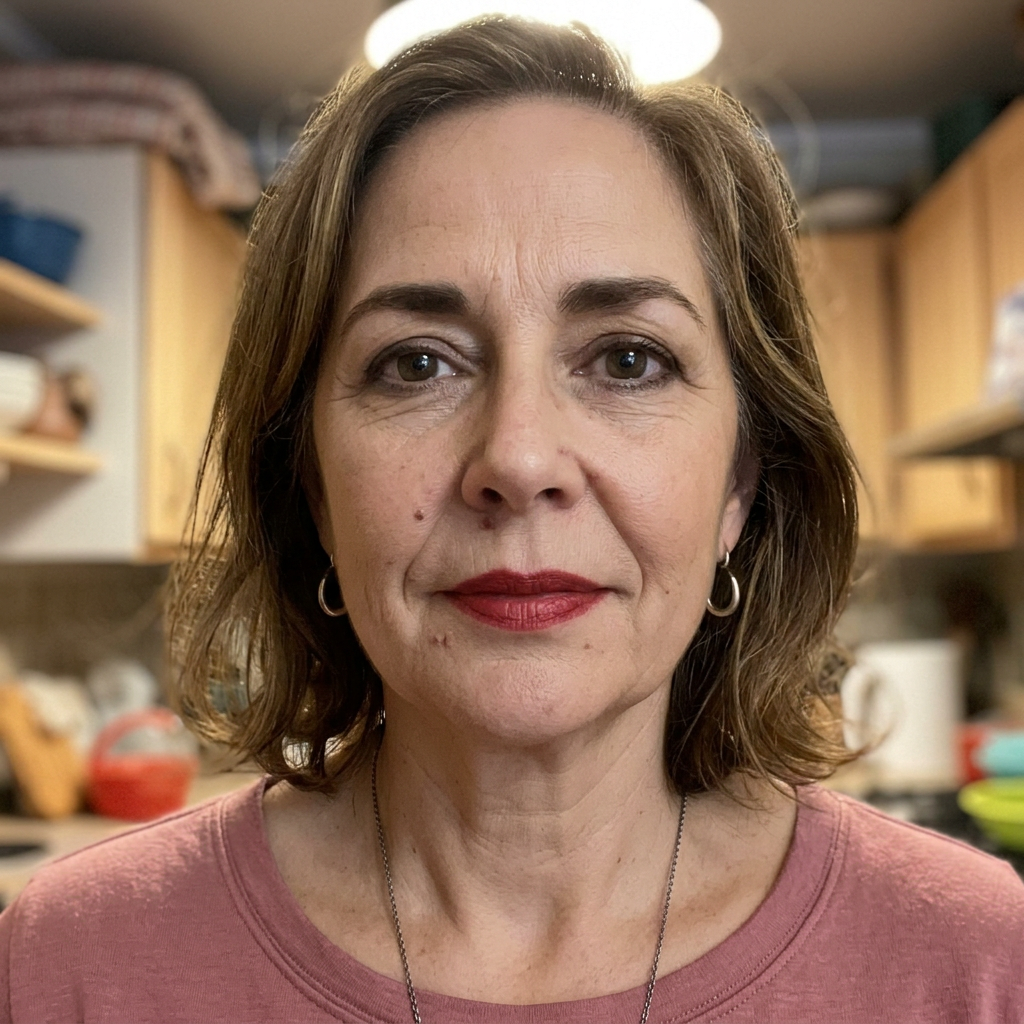
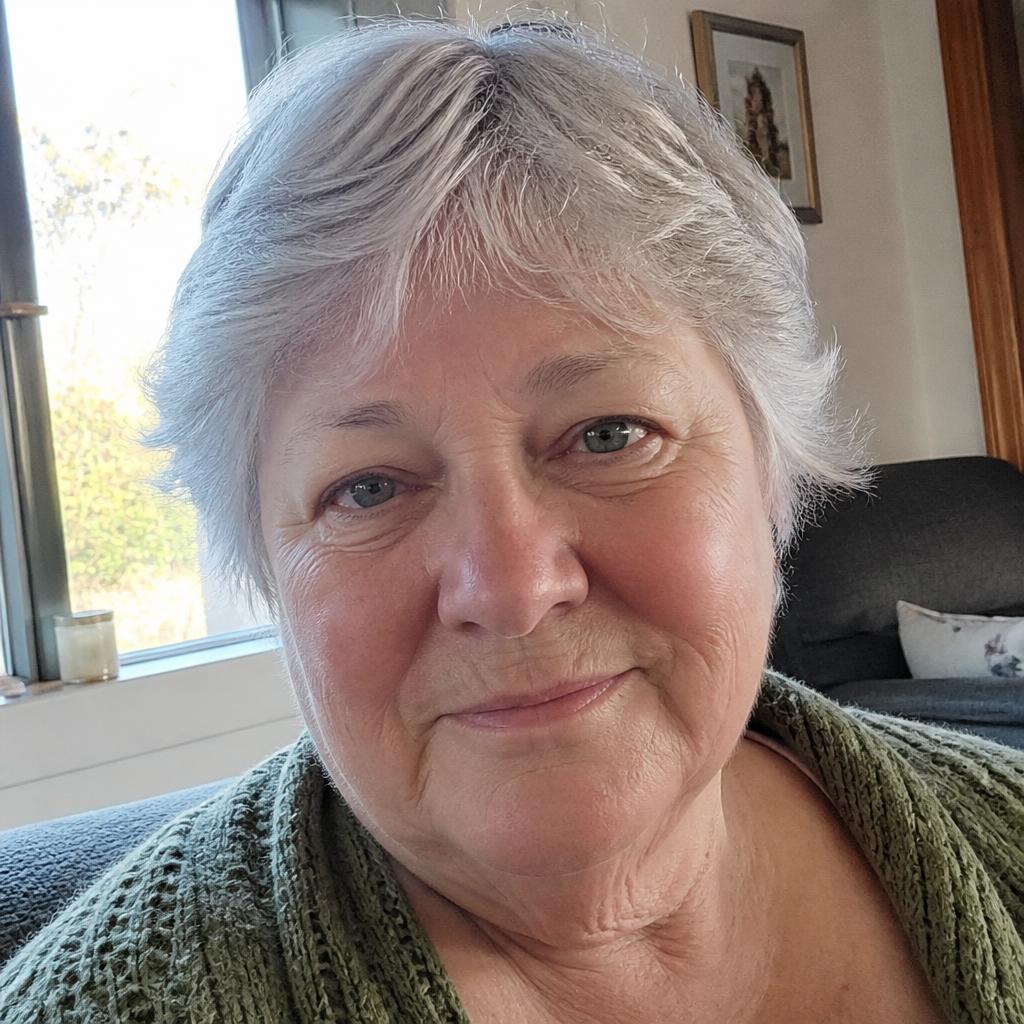
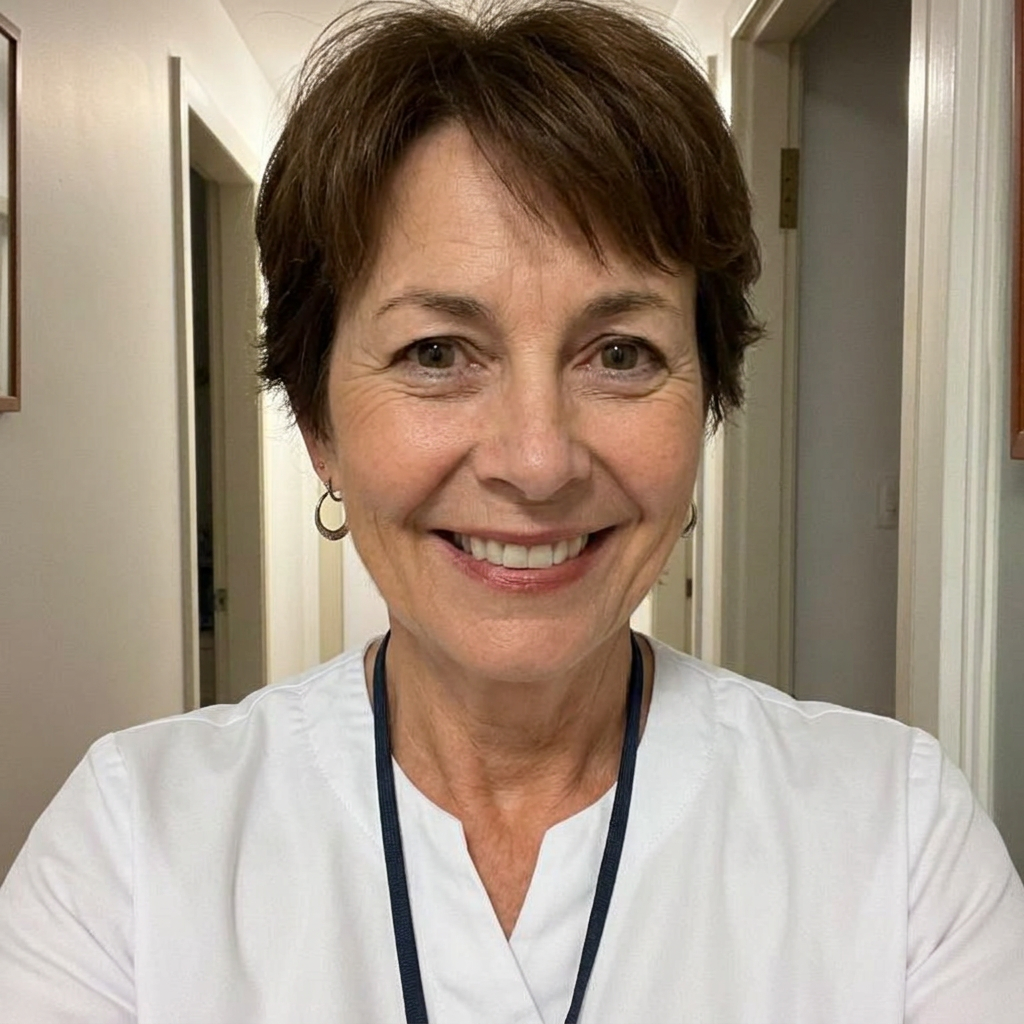
The screen fills with the contact person's photo. Tapping anywhere on the photo answers, and a red area at the bottom ends the call. There is no third option, no decline-with-message, no swipe.
Emergency button
A red bar at the top of the screen ("Emergency") that is always visible and always calls the same number. You decide which — a relative, an alarm centre or the local clinic. It is not an alarm service: in an emergency, use your local emergency number.
Always-on screen
The phone can sit in a charging dock with the screen on. No unlocking, no black screen to wake first. As long as the phone has power, the faces are there.
Hidden admin mode
A family member reaches the settings by tapping ten times on the menu bar at the very top. That is where contacts, photos, numbers and the emergency number are changed. The view cannot be reached by accident.



Sara
calling…